WiFi HaLow on Phones
9 August 2026 — post 2/2 in a series about HaLow
In a recent post I was getting excited about HaLow and I mentioned that I had some HT-HD01 units on order from Heltec. Those have now arrived and my excitement continues. These units are very cool for three main reasons.
It’s affordable. They cost 69 USD each. Nice.
Versatile deployment modes. Out of the box you can build a standard AP/client scenario. You can also use 802.11s meshing, which I haven’t tested yet. You have the choice between NAT and bridging, so you can make it so that all the connected devices think that they’re on the same ethernet segment. You can configure it both for providing internet access and for using it as a secondary network that sits alongside your other WiFi and cellular.
Versatile local-device connectivity, especially ethernet over USB. Interestingly, these dongles do not even attempt to make themselves known to the OS as a WiFi HaLow adapter. The dongle itself acts as the host on the HaLow network and then your device is bridged over regular WiFi/Ethernet. You have three choices: connect to the dongle’s local 2.4 GHz WiFi AP; connect to the dongle’s RJ45 ethernet port; or use ethernet-over-USB via the dongle’s USB-C port.
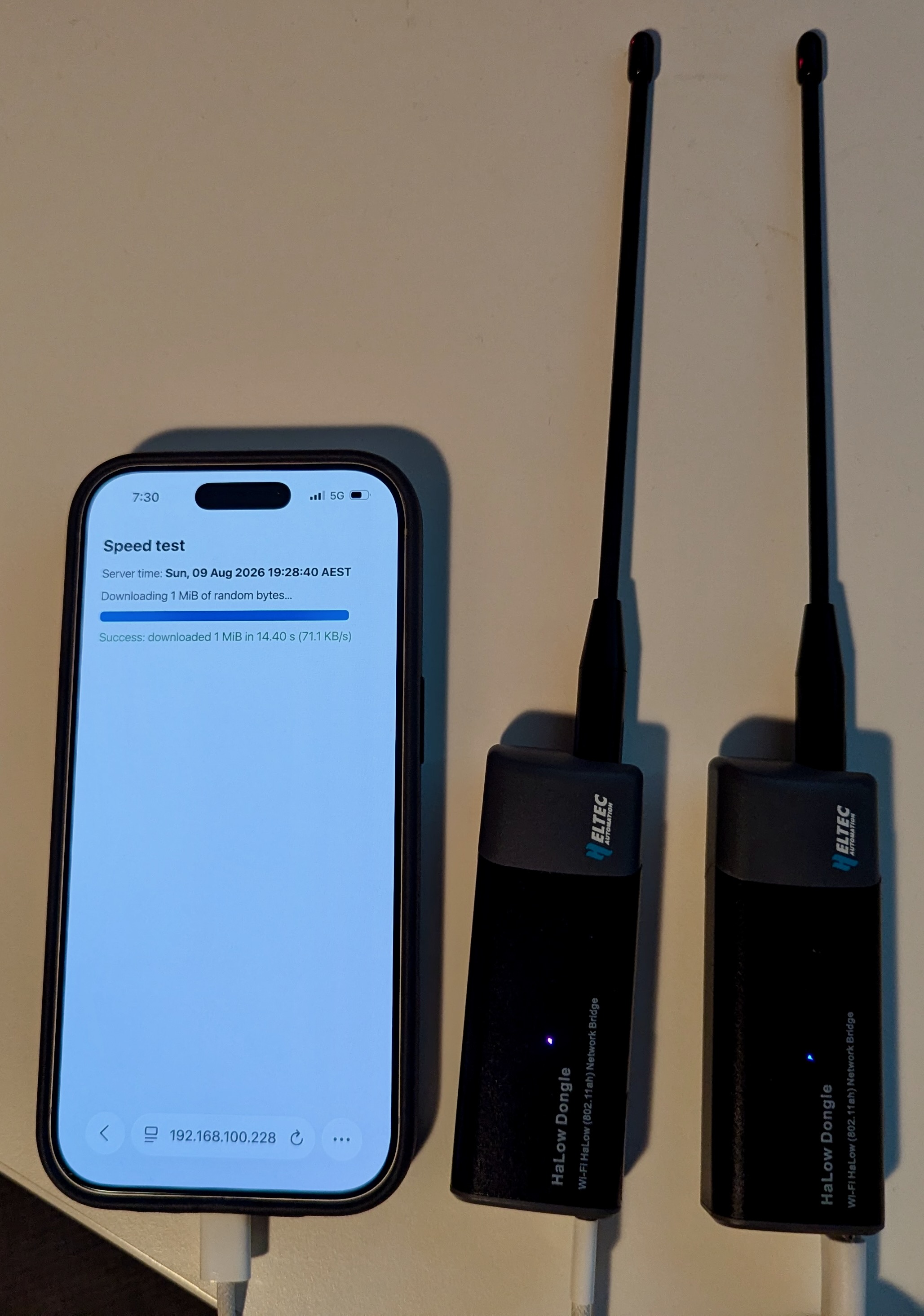
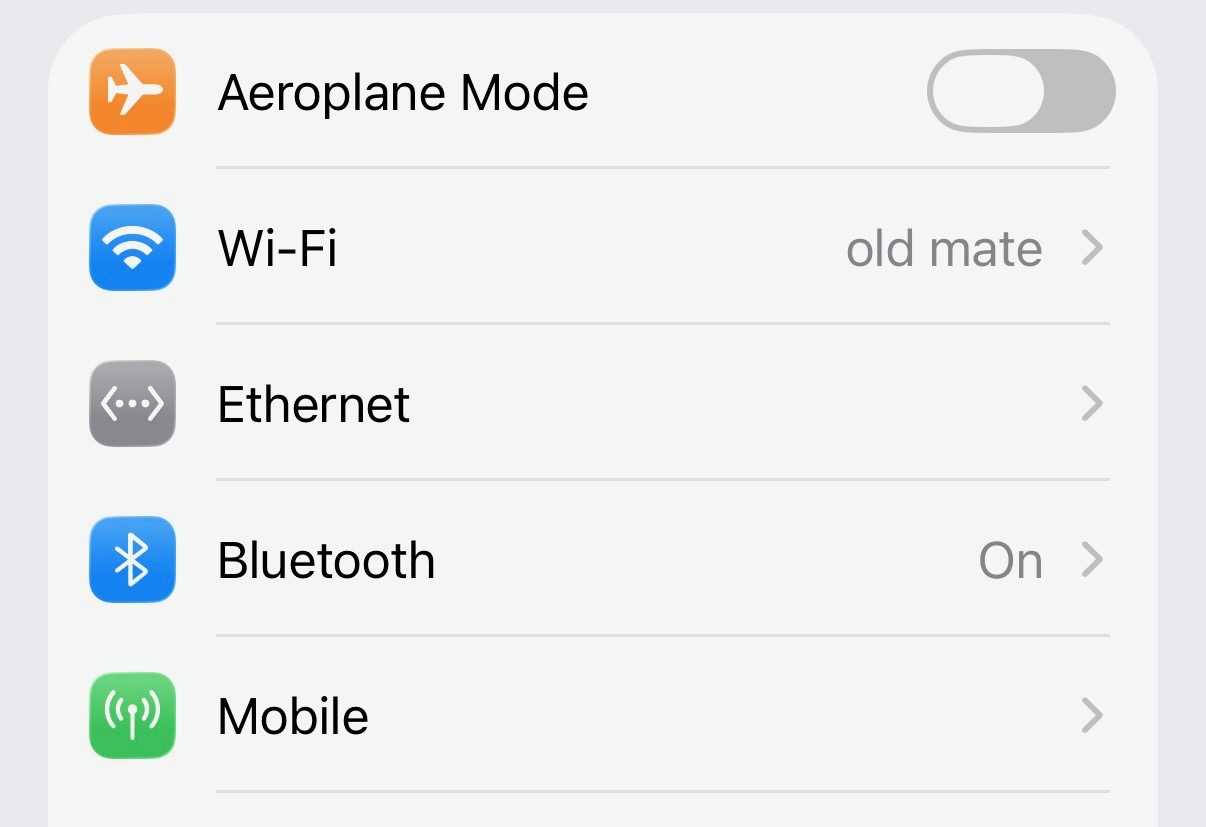
Let’s focus on ethernet-over-USB for a moment because this is super interesting. I’ve tested this on a MacBook, an iPhone 17, and an Android Pixel 7. The Apple devices both did two things: they powered up the radio, and they added it as a wired ethernet device with zero configuration on the phone. This shows up as “Ethernet” in the screenshot above. This is significant so I’m going to spell it out in detail. If you would like your iPhone to communicate over a kilometre or two, you can plug in a device to its regular old USB-C port, and it will work. It does not need any batteries or charging of its own because it can get power from the iPhone. It does not require any pairing or user interaction. It shows up as an additional IP interface, which means that it does not displace any existing connectivity you have via WiFi, Bluetooth or cellular. Because it is a normal IP interface, it Just Works in every app that does LAN networking.
For anyone with an iPhone this is kind of amazing. Unfortunately, it did not work on the Android. For whatever reason my Pixel doesn’t come with an appropriate driver to pick up the Ethernet connectivity. It did, however, appear to power up the radio.
I mentioned before that these devices kind of default to being your primary network, where there exists some upstream gateway that is going to grant you both an IP address and internet access. This is not required. For my tests so far I haven’t gone full mesh and I’ve stuck with the simple “AP” and “STA” roles, where one radio is an AP, and the other connects as a client. With some config tweaks this coexists perfectly well with existing WiFi. I’m more interested in having HaLow as a secondary layer where you’re going to be using HaLow for a strictly P2P role with greater range.
Out of the box, one of the Heltec boxes acting as an AP will advertise itself as the default route. This is a problem if it is not actually connected to an upstream network with internet access, and you would prefer that clients used their existing WiFi or cellular connectivity to access the internet. Ultimately you can do whatever you need—under the hood it’s a MediaTek MT7628 paired with a Morse Micro MM6108 HaLow radio, running OpenWrt which is eminently hackable. You even have the option of flashing your own firmware if you want. The good news is that Heltec’s supplied user interface is sufficient to configure the DHCP server so that it will allocate IPs but not try to route unrelated traffic.
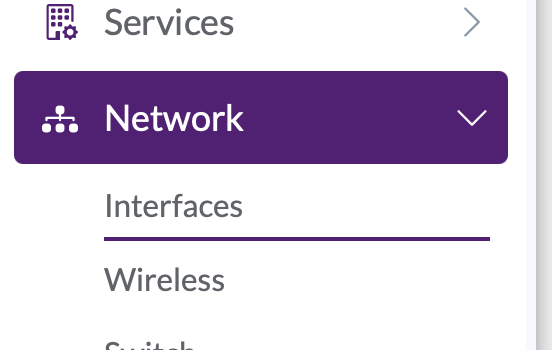
Navigate to Network > Interfaces and choose Edit on ahwlan.

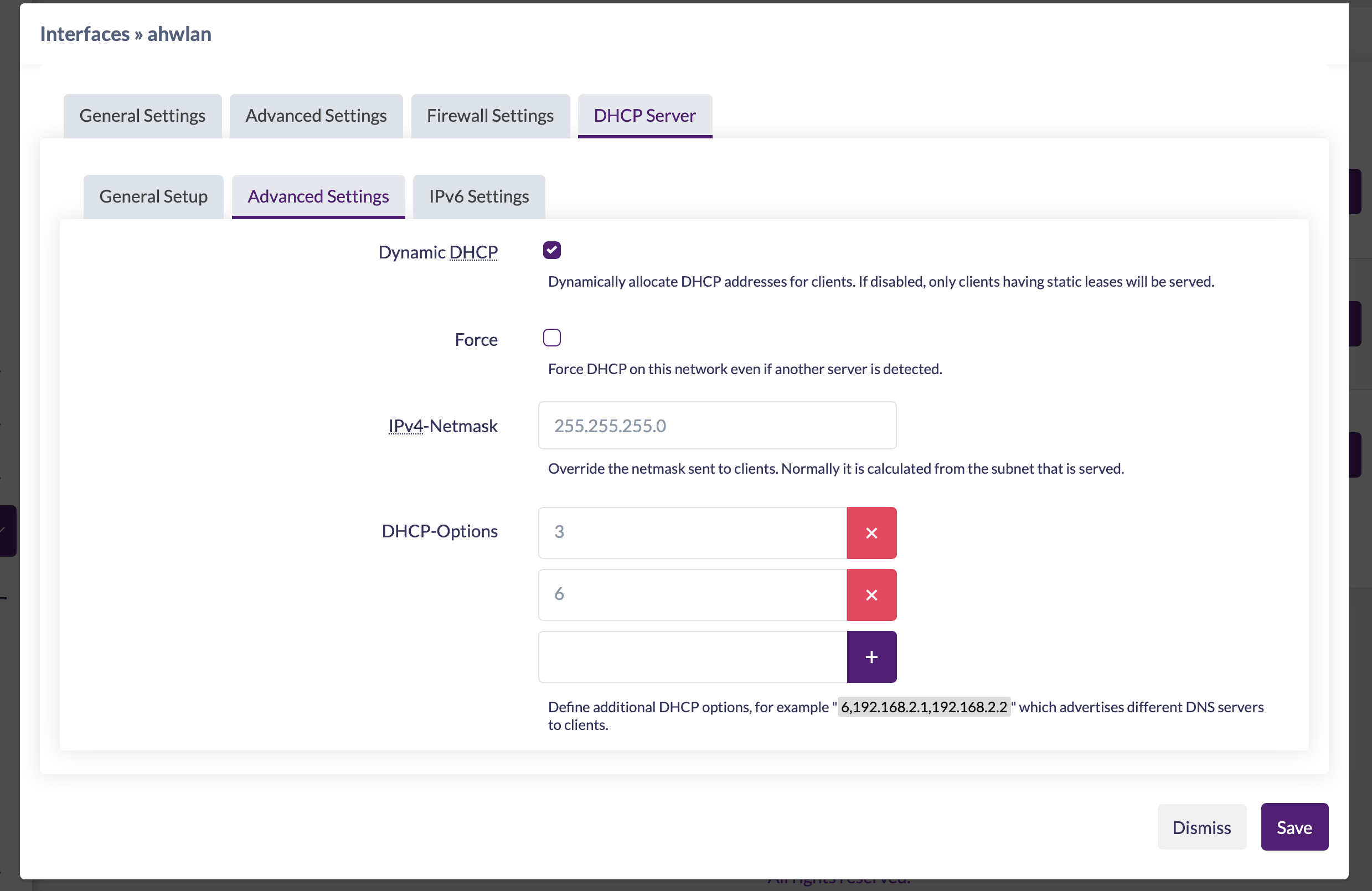
Then go to DHCP Server > Advanced Settings and add a couple of extra DHCP options. The idea here is that a bare 3 will prevent it from advertising a default route, and a bare 6 will stop it advertising itself as a DNS server. This way you are free to talk to other devices across the HaLow LAN in addition to the networks you already had.
The other important thing to know is that these devices do not support wired ethernet and ethernet-over-USB simultaneously. You can toggle between these modes by briefly pressing the little button using the supplied metal widget. Everything is explained by the colour of the LED. For an AP, cyan means wired ethernet and purple means USB. For a station, green means wired ethernet and blue means USB.
The cool thing is that once you get this config locked in, it’s locked in. You can plug it in to a Mac or an iPhone and DHCP does the rest. You need only wait a minute or two for it to boot up.
I intend to put these radios through their paces—expect more posts about them!
Serious Computer Business Blog by Thomas Karpiniec
Posts RSS, Atom